|
My Expenses for May 2004
Here is a sample expense sheet. This will talk about some of the features
of expenseRegister and demonstrate how you can plan and track your expenses effectively
with expenseRegister's tools.
It is best to enter expenses daily. That helps to record most of your
expenses and arrive at an accurate expense total. Let's list some
monthly expenses; rent - $785, groceries - $200, car payment - $200,
gas - $60, cable - $50, electricity - $45, movies - $40, birthday gift - $50, etc.
We'll discuss a step-by-step and systematic approach to record expenses and how
expenseRegister helps you in this process.
Once you login, you are presented with the following screen:
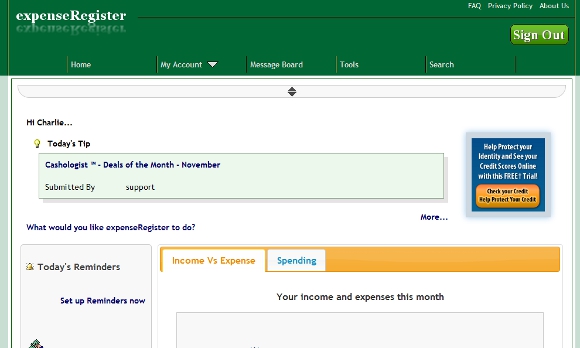
Now let us enter the expenses we listed above and along the way I will give you
some pointers on how to use expenseRegister effectively. Click the
'Expense Tracking' link on the left Navigation Bar. This takes you to
the Expense Tracking Tool, where you can record your expenses. The
default view is all expenses that are not part of any expense sheet.
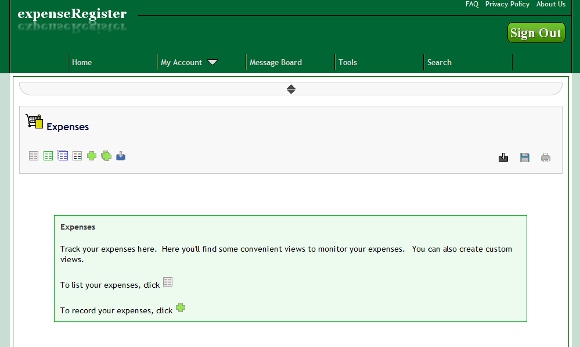
To enter Rent, click the 'Add' button, the Add Expense Form is displayed.

In the Add Expense Form, enter an Expense Sheet name. I like to name this after
the month and year, say 'May2004', but it is totally up to you. You could name it
Household, Travel, etc. Look at Expense Sheet as a file where you
save your bills or 'expense records'. So any logical name is good for an
Expense Sheet. Set the Type to 'Rent', you can pick this from the listed Types
by clicking the question mark icon next to the Type field or you can enter any Type you want.
Enter a Date, Payment Method,
Description, Amount and click Save. Your Rent expense is now added to the
database. Similarly, add the other expenses. I would record car payments
and gas under the same Type, 'Transportation'. Same with cable and electricity,
I would file them under Utilities. Grouping expenses this way helps me when I
query for them later. I also enter expenses on a regular basis, so I have multiple
entries for groceries, gas, etc. These are listed just once here for simplicity.
The list of added expenses looks like in the figure below.
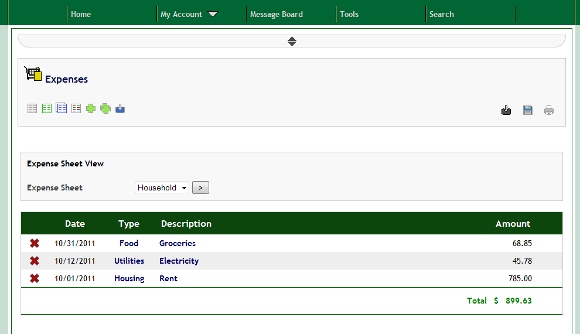
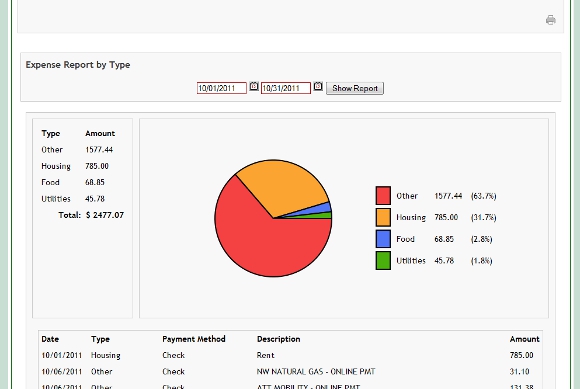
At the end of the month you can create an Expense Report to see what you did with all that
money. This is my favorite feature. Click the 'Create Report' button.
Click the Expense Report Type. In this example we will go through
'Expense Report by Type'.
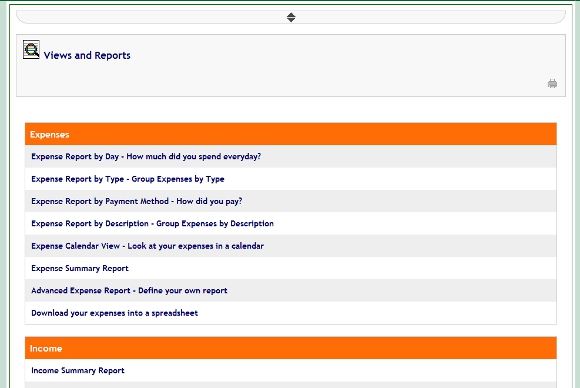
In the 'Create Report by Type' form, select the date range, select the Types from the Types'
List or key in the Types seperated by commas. Check the checkbox to include a
chart in the Expense Report, enter a Report Title, Report Description and click
'Show Report'.
That's it, you have a summary of your expenses.
|
